
Executive Summary
Freepik Spaces 2026: The Node-Based AI Workspace That Is Changing How Teams Create
There is a moment in every creative team’s journey when the single-prompt workflow stops being enough. You are not just generating one image anymore. You are managing dozens of visual variants, syncing them across team members, feeding outputs into upscalers, iterating on brand guidelines, and trying to keep the whole creative logic documented somewhere that everyone can actually access.
This is the problem Freepik Spaces was built to solve — and in 2026, it is doing it better than anything else on the market.
Spaces is not a new AI model. It is not a better image generator. It is a fundamentally different way of working with AI — a node-based infinite canvas where your entire creative pipeline becomes visual, shareable, reusable, and collaborative. Think of it as the difference between writing a single formula in a calculator versus building a full spreadsheet that the whole team can use, audit, and run on new data at any time.
For agencies, brand teams, and serious content creators featured in our All-in-One AI Video collection, Freepik Spaces is becoming the infrastructure layer that everything else runs on top of. Here is a complete breakdown of what it does, how it works, and why it is trending hard in 2026.
What Exactly Is Freepik Spaces?
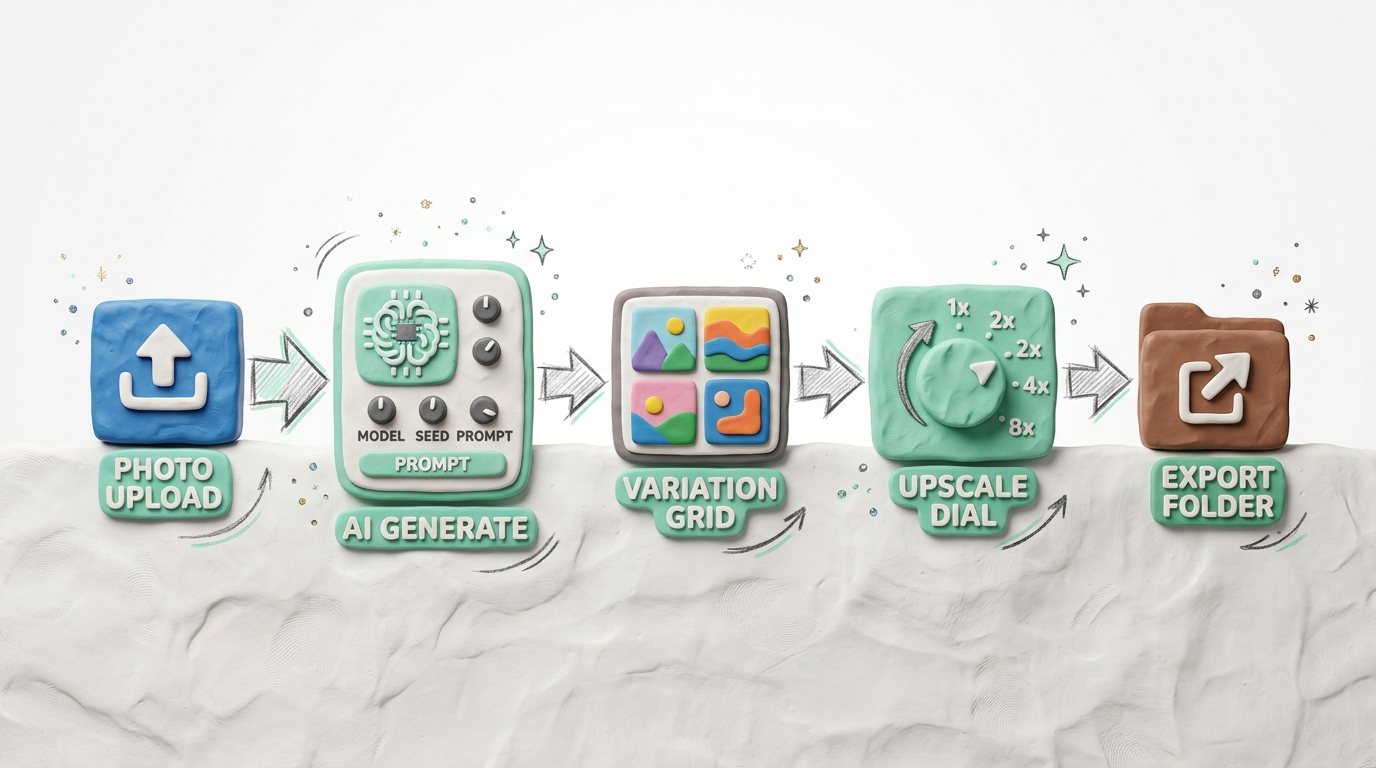
At its core, Freepik Spaces is an infinite canvas where AI tools exist as interconnected nodes. Instead of opening a tool, running a prompt, downloading the result, opening another tool, uploading the result, running another prompt — you build all of those steps as a connected visual graph. Each step is a node. Each connection is a flow of data. The canvas remembers everything.
The mental model is closer to node-based video editors like DaVinci Resolve’s Fusion or workflow automation tools like Make (formerly Integromat) — except instead of video effects or app integrations, the nodes are AI creative operations: generate, upscale, inpaint, style-transfer, vary, and more.
When you run the workflow, every node executes in sequence. Change the input (say, swap out a product photo), and the entire pipeline regenerates with that new input — maintaining every creative decision you made previously.
This is the paradigm shift. You are no longer generating images. You are building creative machines.
The 6 Core Node Types in Spaces (2026)
Understanding what each node type does unlocks the full potential of Spaces. Here is a breakdown of the most important ones:
1. Generate Node
The entry point for most workflows. Feed it a text prompt and it produces an image using any of Freepik’s 36+ models — from Kling 3.0 for photorealistic outputs to Flux variants for stylized content. You can lock the model per node, meaning one branch of your workflow uses Flux for concept exploration while another uses a photorealistic model for final delivery — simultaneously.
2. Image-to-Image Node
Takes any input image and transforms it based on a new prompt while preserving composition, structure, or style — depending on the strength parameter you set. Critical for brand teams that need to maintain visual consistency while generating new content variations.
3. Upscale Node (Magnific Integration)
One of the most powerful nodes in the system. Connect any generated output directly to the Upscale Node and it applies Freepik’s Magnific-grade upscaling technology — taking a 512px AI output to print-ready Ultra HD 4K with texture enhancement. No external tool, no file download required.
4. Inpaint / Edit Node
Select a region of any generated image and regenerate just that area with a new prompt while keeping everything else intact. Used for product placement, background swaps, logo removal, and fine-tuning specific elements without re-running the entire generation.
5. Assistant Node (AI Planning)
A natural language interface within the canvas itself. Use it to expand a brief into a full set of prompts, brainstorm visual directions, or get suggestions for the next node to add. For teams that use Spaces during live brainstorming sessions, the Assistant Node turns the canvas into an interactive creative partner.
6. Template / Reuse Node
The compound payoff of Spaces. Once you have built a complete workflow — say, a 7-node product ad pipeline — you save it as a template. Any team member can open that template, swap in a new product image, and re-run the entire pipeline in one click. Every creative decision, upscale parameter, and style instruction is preserved. This is where agencies recover dozens of hours per week.
Real-World Workflows: How Teams Are Using Spaces in 2026
The best way to understand Spaces is through the actual workflows professionals are building. Here are three real-world use cases that are currently trending:
Workflow 1: The E-Commerce Product Ad Engine
Team: E-commerce marketing manager at a Shopify brand Problem: Need 40 unique product ad creatives per week across 5 SKUs, consistent lighting and style Spaces solution:
[Product Photo Upload]
       ↓
[Image-to-Image Node] — "Commercial studio shot, white background, dramatic lighting"
       ↓
[Variation Node x4] — 4 visual variations per product
       ↓
[Upscale Node] — Magnific 4K for all outputs
       ↓
[Export to Brand Folder]
Result: 20 final 4K product images per SKU, consistent style, generated in under 12 minutes. What previously took a photographer and editor two full days now runs while the team is in a separate meeting.
Workflow 2: The Social Content Calendar Machine
Team: 3-person content team at a mid-size agency Problem: 30 unique social posts per week for a client, consistent brand colors and visual language Spaces solution:
[Brand Guidelines Node] — Reference image locked as style anchor
       ↓
[Generate Node] — Weekly topic brief as text prompt
       ↓
[Style Transfer Node] — Lock brand palette and composition rules
       ↓
[Caption Overlay Node] — Add text elements
       ↓
[Format Variants] — 1:1 for Instagram, 9:16 for Stories, 16:9 for LinkedIn
All three team members share the same canvas in real time. The content strategist updates the brief in the Generate Node, the designer adjusts the style parameters, and the account manager reviews the outputs — all in the same session, on the same infinite canvas.
Workflow 3: The Concept-to-Pitch Deck Pipeline
Team: Creative director at a brand design studio Problem: Need to present 3 distinct visual directions to a client within 24 hours of a brief Spaces solution:
[Client Brief] → [Assistant Node] → 3 Direction Prompts
       ↓                ↓               ↓
[Generate A]    [Generate B]    [Generate C]
(Minimalist)    (Bold/Graphic)  (Photorealistic)
       ↓                ↓               ↓
[Upscale x6]   [Upscale x6]   [Upscale x6]
       ↓                ↓               ↓
         [Export as Direction Decks]
Three parallel visual directions, 6 images each, all upscaled to presentation quality — generated and ready for client review in under 30 minutes. The canvas itself becomes the documented creative brief that the client can reference when approving a direction.
Real-Time Collaboration: What It Actually Looks Like
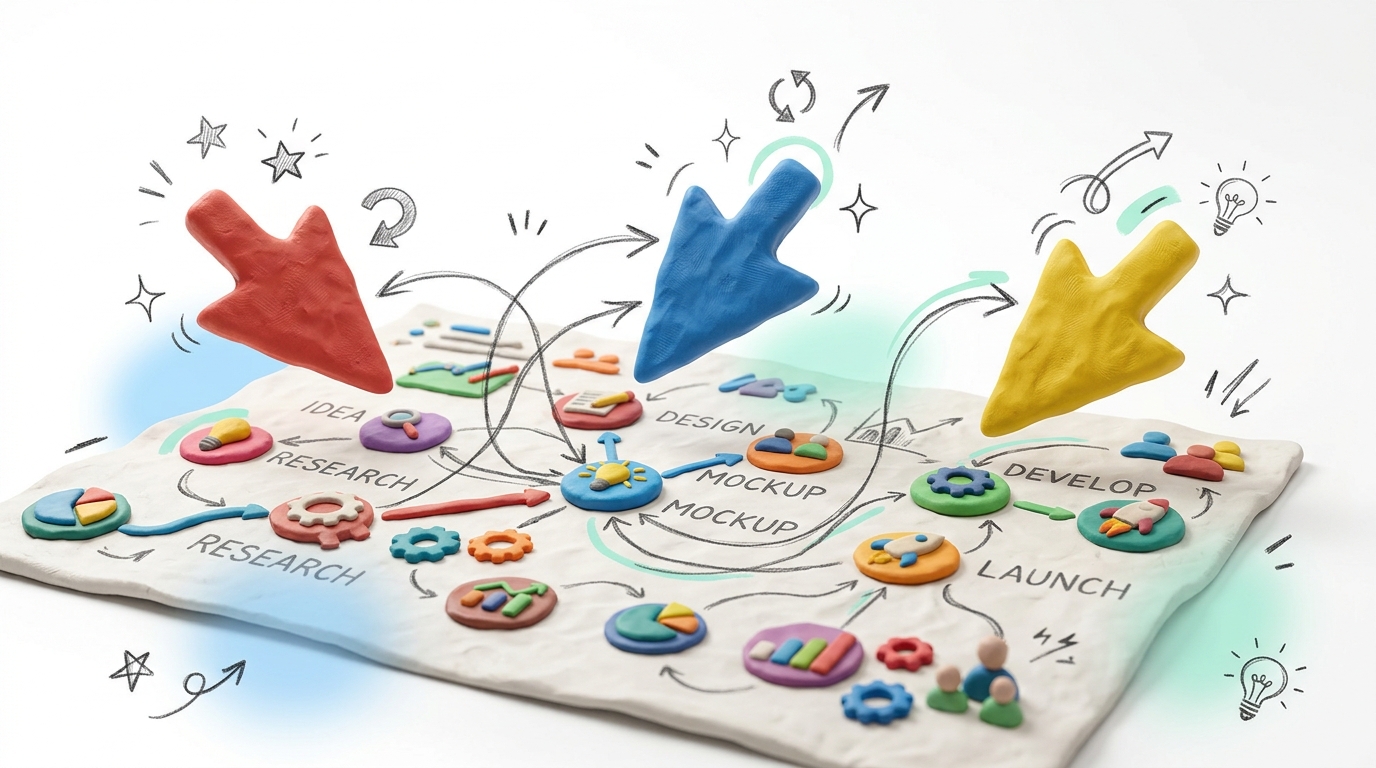
Real-time collaboration in Spaces goes beyond basic shared access. When your team is working on the same canvas simultaneously, each person has a color-coded live cursor — you can see exactly where your colleagues are working, which nodes they are adjusting, and which outputs they are reviewing in real time.
This has a specific and important use case: live client presentations. Instead of showing a static deck, you bring the client directly into the Spaces canvas during the pitch. They can see the generative logic behind each visual direction, watch you swap in their product photo and regenerate the outputs live, and directly interact with the canvas to request variations on the spot.
The psychological effect on clients is significant. It shifts the presentation from “here is what we made” to “here is how we think about your brand” — and it demonstrates a level of professional AI infrastructure that most agencies cannot yet show.
Spaces vs. Traditional AI Prompt Workflows: The Real Cost Comparison
Here is an honest breakdown of what switching from single-prompt to Spaces-based workflows actually changes for a production team:
| Factor | Traditional Prompt Workflow | Freepik Spaces Workflow |
|---|---|---|
| Asset consistency | Inconsistent — each prompt is independent | Locked — style and parameters are node-level |
| Team collaboration | Async file sharing (Slack, Drive) | Real-time shared canvas |
| Creative documentation | Scattered in chat threads | The canvas IS the documentation |
| New product onboarding | Rebuild prompts from scratch | Swap input node, re-run template |
| Time per campaign | 8–12 hours for 40 assets | 1–2 hours for 40 assets |
| Client visibility | Deliverable-only | Process + deliverable |
The 8-to-2-hour reduction is not hypothetical. It maps directly to the Template Node’s core function: run once, parameterize, repeat infinitely.
How to Get Started with Freepik Spaces (Step-by-Step)
Getting into Spaces for the first time is straightforward. Here is the fastest path from zero to a working workflow:
- Sign up or log into Freepik via our Exclusive Freepik Deal — you need at minimum the Essential plan to access Spaces. Premium+ unlocks all 36+ model nodes and the Magnific upscaler.
- Open Spaces from the Freepik dashboard — it is under the “AI Tools” or “Create” navigation.
- Start a blank canvas — you will see the infinite white workspace. Use scroll to zoom, middle-click to pan.
- Add your first Generate Node — click the ”+” to browse available nodes. Start with a Generate Node and enter a basic prompt.
- Connect a second node — add an Upscale Node and connect the output of Generate to the input of Upscale by dragging the connector dot.
- Run the workflow — hit the Run button. Watch both nodes execute in sequence.
- Add the Assistant Node — place it anywhere on the canvas and ask it to “suggest 3 visual variations of this concept.” Use its output prompts to seed 3 parallel Generate Nodes.
- Save as Template — once your workflow is solid, save it. This template is now reusable by any team member with access to your workspace.
The learning curve is approximately 2–3 sessions to feel fluent. After that, the visual logic of the canvas becomes faster to navigate than any menu-based interface.
Who Is Freepik Spaces For in 2026?
Spaces is not for everyone — and being honest about that matters. Here is a clear breakdown:
Spaces is a must-have for:
- Creative agencies managing multiple client campaigns with consistent brand guidelines
- E-commerce brands producing high-volume product photography and ad creatives
- Content teams running social calendars that require visual consistency at scale
- Brand designers who need to document and present creative systems, not just deliverables
- Art directors who want to build reusable visual pipelines that junior team members can operate
Spaces is probably overkill for:
- Solo creators making one-off social posts
- Individual photographers or artists who work exclusively in single-image workflows
- Users who only need stock downloads and basic AI generation
If your work involves repetition, consistency, collaboration, or client delivery, Spaces is almost certainly underutilized by you right now.
Pricing: What Plan Do You Need for Full Spaces Access?
Spaces is available on all paid Freepik plans, but the depth of functionality varies:
- Essential ($7.50/month billed annually): Access to Spaces canvas, core nodes (Generate, Upscale, Inpaint), limited to standard models, 96,000 credits/year.
- Premium+ ($33.75/month billed annually): Full Spaces access — all 36+ model nodes including Kling 3.0 and Veo 3.1, Magnific-grade upscaler, unlimited template saves, real-time team collaboration with multiple cursors.
- Enterprise (Custom): Dedicated workspaces per team, admin controls, advanced API integration, SLA support.
For most agencies and professional teams, Premium+ is the correct tier — the Magnific upscaler alone delivers production-ready 4K output that would cost significantly more on standalone upscaling services, and the full model roster means your Spaces workflows have access to the best generative output available anywhere.
Visit our Freepik Deals page for the latest annual discount pricing and any active bundle promotions.
Final Verdict: Is Freepik Spaces Worth It in 2026?
Yes — and not just “worth it.” For the right team, it is transformative.
The combination of unlimited generation, 36+ models, Magnific upscaling, real-time collaboration, and reusable template workflows in a single subscription is a package that simply does not exist anywhere else at this price point. No other platform offers node-based creative workflow infrastructure at $33.75/month.
What makes Spaces particularly compelling right now is that most teams are still discovering it. The agencies and creators who have already built their first 10 Spaces templates are operating at a production speed and consistency level that their competitors have not caught up to. There is a genuine first-mover advantage in mastering this tool before it becomes industry-standard infrastructure.
If you are still working through single prompts and wondering why your AI workflow feels slow and inconsistent — Spaces is the answer.
Explore the full platform and see where it fits in our All-in-One AI Video Leaderboard, or go directly to the Official Freepik Workspace and open your first canvas today.
Ready to explore the most powerful AI creative tools available in 2026?
Browse the complete All-in-One AI Video collection with exclusive deals: 👉 https://aivideodiscount.com/all-in-one-aivideo/
Have you tried Freepik Spaces yet? What workflow are you building first? Share your setup in the comments below!
Want more deep dives like this? Visit our AI Video Blog for the latest expert breakdowns, or head back to the Home page to see the full AI tool leaderboard.